ShortcutAI is the AI assistant in the Shortcut platform. It helps at every stage of a creator campaign: filling in your brand details, writing the brief and scripts, choosing creators, following delivery and reading the results.
You review and edit everything it writes before it reaches creators. It sends nothing to them until you confirm.
Your brand and products
Everything ShortcutAI writes later depends on what it knows about your brand and product. That is why its help starts here.
- Reading your website: when you add a brand, enter its website and agree that ShortcutAI may read its public pages. It fills in what you have not filled yet, such as the logo, the brand description, social accounts, commercial registration, VAT number, and a marketing profile of your audience, selling points and tone.
- Reviewing the profile: it asks “Did ShortcutAI get this right?”. Press “Looks right”, or “Something's off” and write the correction in your own words, then press “Fix it”.
- Filling in a product: in the product window, paste the product page link and press “Prefill with ShortcutAI”. It fills in the name, description, price, type and photo.
See how to add your brand and products.
Creating a campaign by voice
On the “New campaign” page, choose “Talk to ShortcutAI”, then “Start the conversation”, and describe your idea out loud. The conversation becomes your objective and audience, creator requirements, deliverables and dates, and the brief. This option needs your browser to allow the microphone.
See how to create a UGC campaign.
Writing the brief
- In the “Brief” step, press “Have ShortcutAI write it”. It reads your brand profile, your product page and the campaign goal, then writes the brief and the do's and don'ts, and suggests a campaign name.
- To improve part of the text, select it and choose from the toolbar: “Make it clearer”, “Shorten”, “Add detail”, or translate it into Arabic or English.
- A note reads “ShortcutAI wrote part of this - read it through before you send.”, so review the whole text and change what you want.
See how to write the campaign brief.
Choosing creators
- Searching by description: type what you want in your own words in the search box, such as the style, category and city. Press “Fill in filters” and ShortcutAI ticks the filters you named, such as region, category and licence.
- Suggestions: press “See who we'd pick”. ShortcutAI reads your brief, usually in under a minute, and ranks creators from the closest to your brief. Each suggested creator's card shows a line about their content, their main niche and its share of their content.
- Audience estimate: on a creator's profile, their audience is split by gender and age. When the figures are an estimate, they are marked “ShortcutAI estimate”.
The final choice is yours. See how to choose creators.
Scripts
- Once creators accept, choose “Write a script per angle” or “Send the brief as it is” on the campaign page.
- In the “Script studio”, ShortcutAI writes a script for each group of your customers. Change any script with a written instruction, such as “make the opening shorter”, then press “Apply the change”.
- Press “Assign automatically” to share the scripts out among your creators, and check the assignment before you send the scripts.
- The number of writing rounds is limited, and what is left shows beside the button.
See how to send the script or brief.
Following the campaign
Open the “ShortcutAI summary” from the sidebar and ask about your campaigns. It answers from the same figures your pages show, and reads only your account's data.
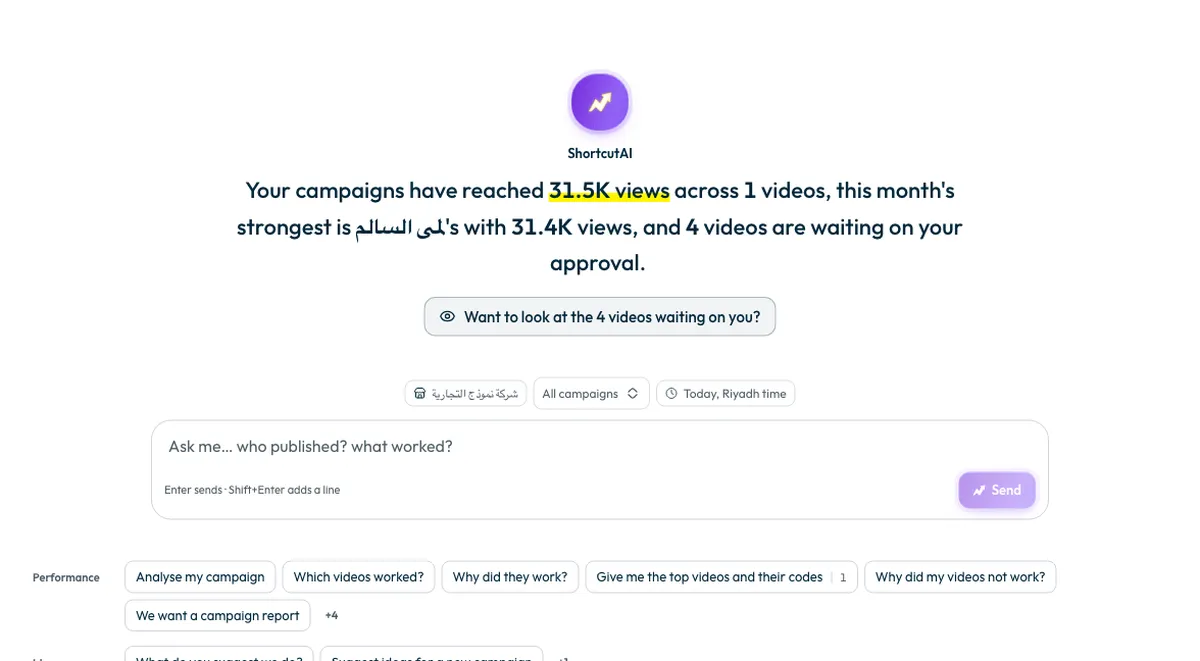
- Ask “Who's late?” or what is waiting for your approval.
- Ask it to “Remind the late ones for me”. It shows who the reminder would reach, and sends nothing until you press “Send the reminder” and confirm.
- Ask it to “Find me a replacement” for a creator who will not finish, to “Write me a summary to send my manager”, or to “Suggest ideas for a new campaign”.
See how to use the ShortcutAI summary, and tracking campaign progress.
Results
Once the videos are live, open the “ShortcutAI insights” tab on the campaign page. ShortcutAI reads the comments under your videos and shows:
- “What people asked”: questions about price, stock or how to order. You write your answer and it is saved for your team; it is not passed to the creator automatically.
- “Why each video did what it did”: what carried each video, and what held it back.
- “What is worth doing about it”: the clearest next steps your results point to, most pressing first.
See how to read your campaign results.
What stays your decision?
- Reviewing videos, and approving them or asking for changes, is your decision. ShortcutAI does not review videos for you.
- Choosing creators and paying is your decision.
- No brief, script or reminder reaches creators until you send or confirm it.
Common questions
What if ShortcutAI gets something wrong about my brand?
Press “Something's off” under “Did ShortcutAI get this right?”, write the correction in your own words, then press “Fix it”. You can also edit the brand details yourself.
Does ShortcutAI message creators without my knowledge?
No. Nothing reaches creators until you confirm. Sending reminders is available to the “Owner” and “Admin” roles only.
Does ShortcutAI check videos before they reach me?
No. You review each video yourself, then approve it or ask for changes. See approving a video or requesting changes.
Did this article answer your question?
Thank you. We use your answer to improve the article.
Your answer could not be saved. Try again.
Need more help?
Contact our support team, and we will help you with your question.