Every campaign on Shortcut belongs to a brand. So you start by adding your brand, then its products. It takes a few minutes, and a company can have more than one brand.
What you enter here does not stay on a settings page. ShortcutAI, the platform's AI assistant, reads it and builds your briefs, ideas and scripts on it. Creators also see it with every campaign you launch.
Why does Shortcut ask for your website, country and products?
Every field on the form changes something in your campaigns:
| What you add | What it changes |
|---|---|
| Name | Creators see it on every campaign, and it appears in briefs and reports. |
| Website | ShortcutAI reads your description, logo, social accounts, selling points and tone of voice from it, and builds your “Marketing profile”. |
| Country | It sets your campaigns' market: the regions and cities in the creator filters, the country the branch picker starts with, and the creators the campaign is shown to. |
| Products | Creators see the product's name, description, photo, link and price. ShortcutAI opens the product page when it writes your brief. |
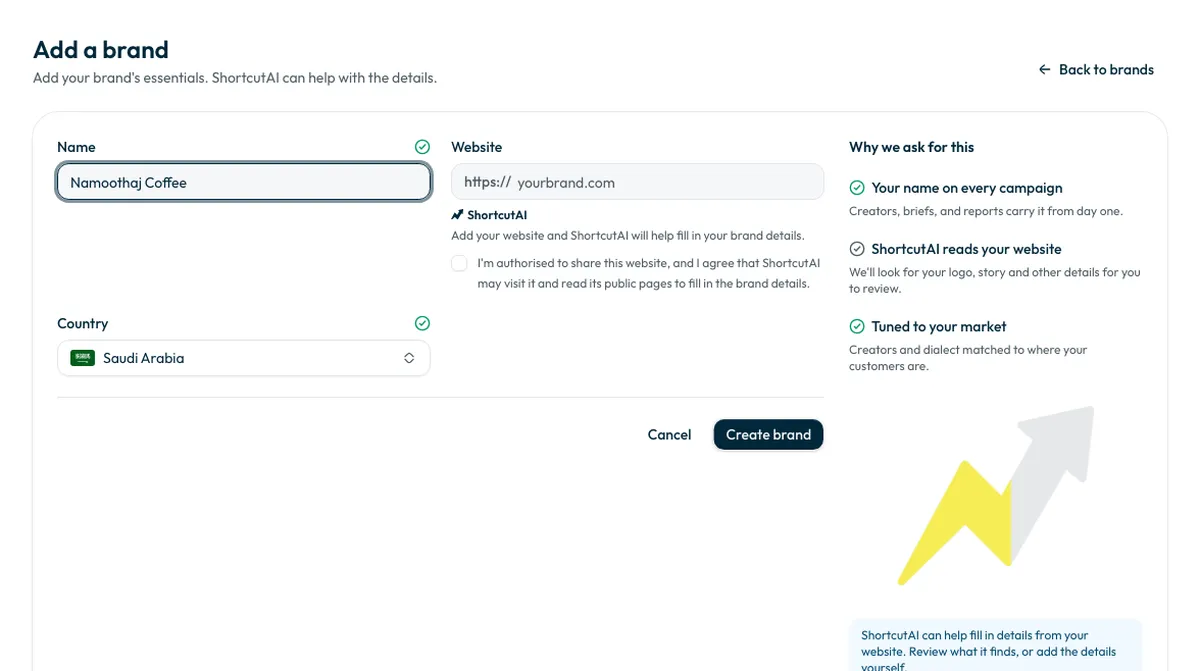
The form shows the same reasons in its “Why we ask for this” panel beside the fields.
Add the brand
Brands are added by team members with the “Owner” or “Admin” role.
- In the sidebar, open “Brand & products”, then “Brands”, and press “Add brand”.
- Enter the “Name” your customers know you by.
- Enter your “Website” if you have one, then tick the consent box that starts “I'm authorised to share this website”. ShortcutAI does not visit your site without it. If you have no website, leave the field empty and add the details yourself later.
Check the “Country”, then press “Create brand”.
What does ShortcutAI do with your website?
Once the brand is created, its page opens and shows “ShortcutAI is reading your website…” with each step as it completes. ShortcutAI reads your public pages, such as the homepage, the About page, contact pages and legal pages. This usually takes a few seconds.
It then fills in what it finds published on your site:
- Your brand description, logo and category.
- Your social accounts, including your TikTok account.
- Your commercial registration number, VAT number and contact details, if your site publishes them.
- The “Marketing profile”: your brand story, “Selling points”, “Product lines”, “Target audience”, “Certifications”, “Shipping”, “Physical stores” or online only, “Mobile apps” and “Tone of voice”.
ShortcutAI never writes over details you entered yourself. If a field already has a value, it is left as it is.
Where does ShortcutAI use your brand profile?
- Writing the brief: it reads your brand profile, your product page and the campaign goal, then writes the brief and the do's and don'ts and suggests a campaign name. If your brand has no marketing profile, the Brief step reminds you: “Add your brand profile and ShortcutAI can write a sharper brief.” See How do I write a campaign brief for creators?
- Scripts: it builds scripts on your brand and product once creators accept. See How do I send the script or brief to creators?
- Assistant and ideas: the ShortcutAI assistant answers and suggests campaign ideas from your brand's details. See the ShortcutAI assistant.
- Creators: creators see your logo, description, website and your account on the campaign's platform, so they know who they are filming for.
How do I review and correct what ShortcutAI wrote?
What the AI writes needs your review, because it only knows what your website publishes.
- On the brand page, read “About”, “Social profiles” and the “Marketing profile” under the “Brand details” tab.
- Below the marketing profile, you are asked “Did ShortcutAI get this right?”. If it did, press “Looks right”.
- If something is wrong, press “Something's off”, write the correction in your own words, for example “We target families, not just women.”, then press “Fix it”.
- ShortcutAI updates the profile from your note, then asks the question again so you can check the change.
- To change the description, logo, category, country or website yourself, press “Edit brand”.
If the website cannot be read, a message says so and your brand stays saved. Check the full address in “Edit brand”, then press “Try again”, or add the details yourself. If the brand page shows “Fill with ShortcutAI”, press it to start reading the site.
Why add my products?
Creators do their best work with something specific in hand. A product you add reaches several places:
- Creators see the product's name, description, photo, link and price with the campaign.
- ShortcutAI opens the “Product homepage” when it writes the brief, and uses the product when it writes scripts.
- The product and brand names feed the search for creators who fit your campaign.
- If you choose “Creator buys the product”, the product money in the campaign starts from the “Retail price” you entered.
- A digital product cannot be shipped, so its campaign does not offer shipping.
Add a product
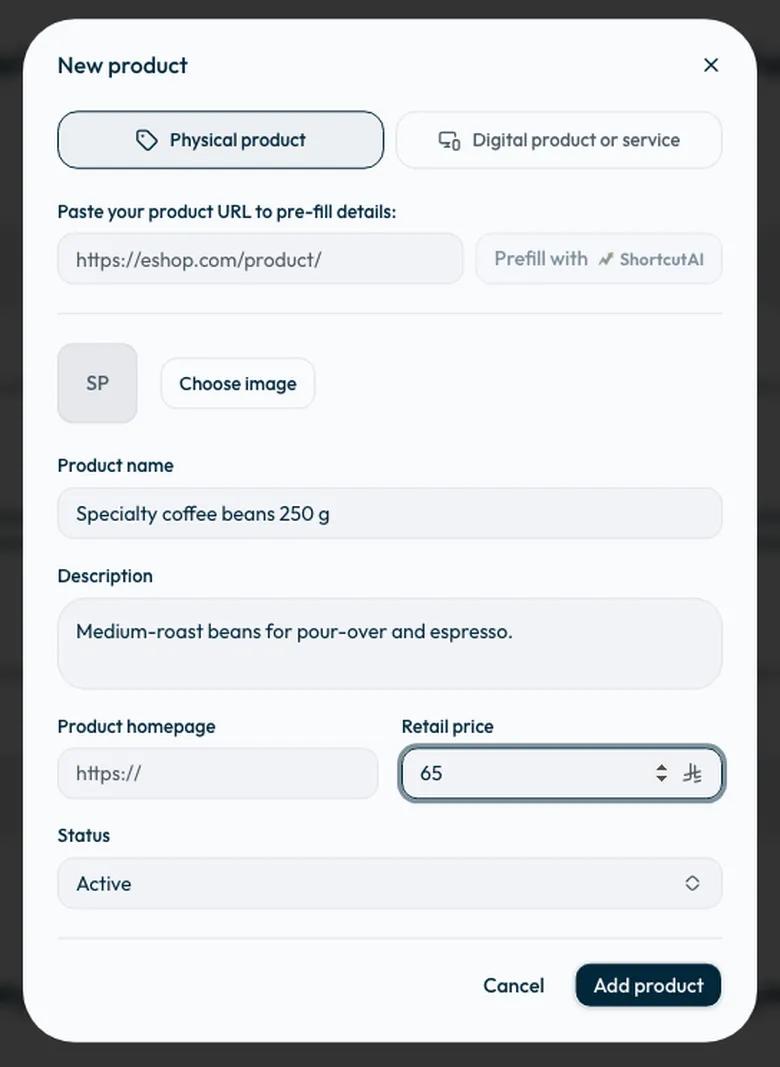
- Open the brand page, go to the “Products” tab, and press “Create product”.
- Choose “Physical product” or “Digital product or service”.
- The fastest way: paste the product page link under “Paste your product URL to pre-fill details:”, then press “Prefill with ShortcutAI”. ShortcutAI reads the page and fills in the name, description, price, type and photo. Check what it filled in before saving.
- Or enter the “Product name” and “Description” yourself. Say what the product is and what makes it worth featuring.
Add a “Product photo”, the “Product homepage” and the “Retail price”, then press “Add product”.
If ShortcutAI cannot read the product page, a message says so and you add the details yourself.
The product appears under the brand's “Products” tab. When you create a campaign, you choose the product creators promote, or “Not one specific product - the brand in general”.
Common questions
Does my brand need a website?
No. Leave the field empty and add the description, logo and accounts yourself from “Edit brand”. A website only saves you that time and gives ShortcutAI more to write your brief from.
Does ShortcutAI change details I entered myself?
No. It fills in empty fields only and leaves what you entered as it is.
Why couldn't my website be read?
The usual cause is a typo in the domain, or the wrong ending, such as com instead of sa. Fix the address in “Edit brand”, then try again.
Can I add more than one brand?
Yes. Add each brand the same way. Each brand has its own products and marketing profile.
Next step
Add your billing details, then create your first campaign. To see everything the platform's AI can do, read ShortcutAI features.
Did this article answer your question?
Thank you. We use your answer to improve the article.
Your answer could not be saved. Try again.
Need more help?
Contact our support team, and we will help you with your question.