Billing details are your company's legal name, commercial registration (CR) number and national address, plus your VAT number if your company is registered for VAT. You add them once, and they appear on the quotations and tax invoices issued to your company.
You cannot top up your advertising balance until they are complete, because every top-up is issued a tax invoice in your company's name.
Why does Shortcut ask for billing details?
- Tax invoices: adding funds is a taxable supply, so the invoice must carry your legal company name, CR and address. See Where do I find my tax invoices?
- Topping up: top-ups stay unavailable until the details are complete, and the “Advertising balance” page shows “One quick step before you add funds” until you finish them.
- Paying when you book: if your balance does not cover a booking and you pay the difference by card, the payment window asks for these details first, in a “One quick step before you pay” step.
Before you start
- Have your CR number, your national short address and, if you have one, your VAT number ready.
- Only the owner can edit the “Company” page. The “Owner” and “Admin” roles can both add billing details from the “Billing details” tab on the “Advertising balance” page.
Add billing details from the Company page
- In the sidebar, open “Workspace”, then “Company”.
Go to the “Billing details” section.
- Enter the “Legal company name” exactly as on your CR, then the “Commercial registration number”.
- If your company is registered for VAT, switch on “We're registered for VAT” and enter the “VAT number”. Otherwise, leave it off. Leaving it off is a complete answer, not a missing field.
- Enter your “National short address”. The rest of the address is filled in from the national address register. If it is not found, press “Enter address manually” and fill in the building number, street, district, city and postal code.
- Press “Save”. A message confirms your billing details are saved.
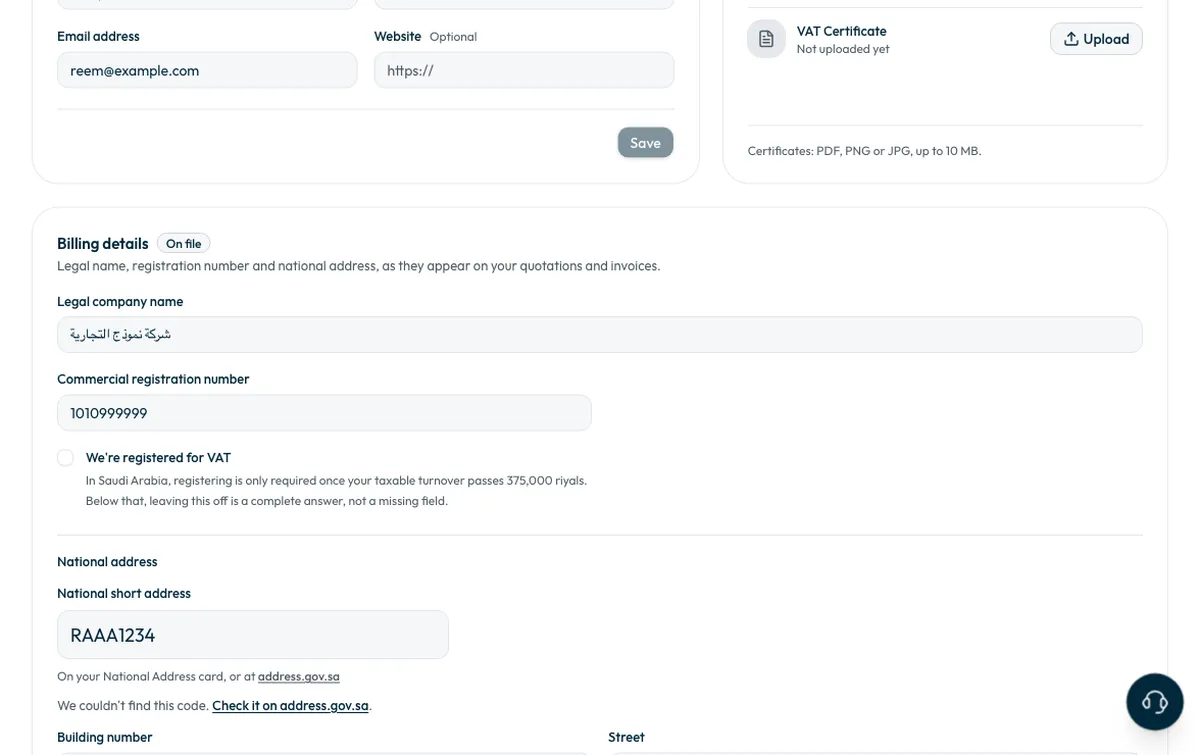
You can enter the same details on the “Advertising balance” page, under the “Billing details” tab, then press “Save details”. Both pages edit the same details, so what you save in one appears in the other.
Upload your logo and documents
On the same “Company” page, upload your logo, commercial registration and VAT certificate under “Logo & documents”. Files can be PDF, PNG or JPG, up to 10 MB.
Common questions
Do I need billing details to create a campaign?
No. You can create a campaign, write the brief and choose creators without them. You need them to top up, or to pay by card.
My company is not registered for VAT. What do I do?
Leave “We're registered for VAT” off and complete the rest.
My national address was not found. What do I do?
Press “Enter address manually” and type the address details yourself.
Next step
Once saved, you can top up your advertising balance or create your first campaign.
Did this article answer your question?
Thank you. We use your answer to improve the article.
Your answer could not be saved. Try again.
Need more help?
Contact our support team, and we will help you with your question.