You follow creators from the “Campaign cycle” tab on the campaign page. It shows each creator's step and who the next action waits on: “You”, “The creator”, or “Us” (the Shortcut team).
At a glance you see what waits on your decision, who is late, and who has published.
See where each creator is
Open the campaign, then the “Campaign cycle” tab. The cards at the top count the creators at each step.
- Press a card to show only the creators at that step. To find a creator, type their name or handle in the search bar.
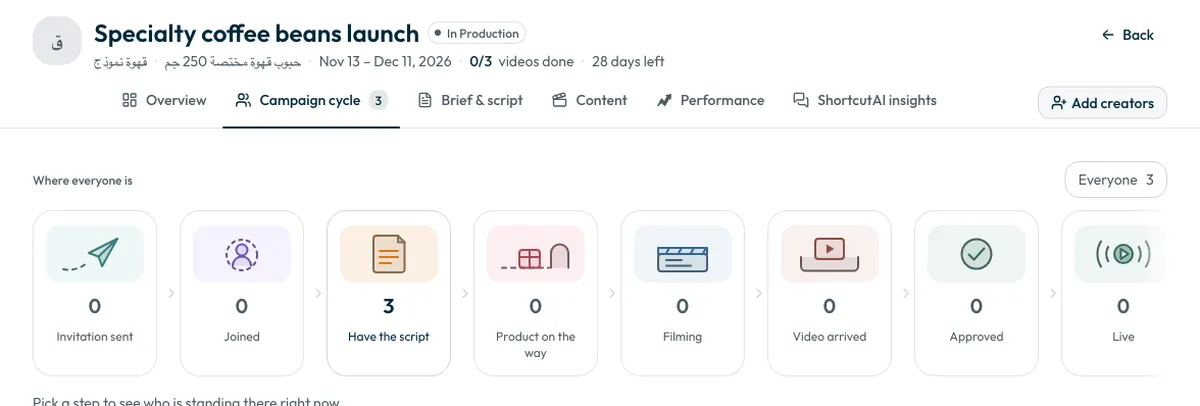
What each step means
- Invitation sent: the creator has not replied yet.
- Joined: they accepted and are waiting for the script or brief.
- Have the script: the script or brief has reached them.
- Product on the way: the shipment is recorded and the creator has not confirmed receipt yet.
- Filming: the creator is making the video.
- Video arrived: the video is waiting for your review.
- Approved: you approved the video.
- Live: the video is published on the creator's account.
Follow the videos of all your campaigns from the “Content” page
The “Campaign cycle” tab shows one campaign. To follow the videos of all your campaigns together, open the “Content” page from the sidebar. The top of the page shows how many videos are in each state:
- “Needs your review”: videos that arrived and are waiting for you.
- “Revision requested”: videos you sent back, which the creator is reworking.
- “Awaiting upload”: videos creators have not uploaded yet.
- “Approved”: videos you approved.
Press any state to see only its videos, or use the “Campaign” filter for one campaign. Reminders are sent from the “Campaign cycle” tab inside the campaign, not from the “Content” page.
Do creators get automatic reminders?
Yes. In the two days before a video is due, the creator gets automatic WhatsApp reminders, provided they are able to film. These do not count towards the three reminders described below.
Remind a late creator
The reminder button appears when a video is past its due date and the next step is the creator's own.
- In “Campaign cycle”, find the creator whose video is late.
- Press “Chase it up”, then “Send”. The reminder reaches the creator on WhatsApp.
- A creator can be reminded once a day for the same video, whoever sends the reminder.
- Each late video gets three reminders. After the third, the button stops, the message “We've already reminded them three times. Our team will follow up with them directly.” appears, and the Shortcut team is alerted.
- If the delay comes from a shipment or a visit that has not happened, a reminder will not move it. The step needed is shown beside the creator's name.
Ask ShortcutAI to remind late creators
ShortcutAI, the platform's AI assistant, can tell you who is late and why, then offer to remind them all at once. Ask, for example, “Who's late?” or “Remind the late ones for me”.
- The assistant shows who will be reminded and the message before anything is sent, and sends nothing until you confirm.
- Only the “Owner” and “Admin” roles can confirm a reminder.
- The same rules apply: one reminder a day, and three reminders per late video.
For details, see How do I use ShortcutAI to follow my campaigns?
Cancel an unanswered invitation
If a creator has not answered yet, press “Cancel invite”. Their amount returns to your advertising balance straight away.
Common questions
Why is there no reminder button?
The button appears only for a video past its due date, when the next step is the creator's. It disappears after the third reminder.
Can I remind a creator twice in one day?
No. One reminder is sent per day for the same video.
Next step
For what happens to the money when a creator declines or drops out, see What happens if a creator declines or drops out? When the video arrives, see How do I approve a creator’s video or ask for changes?
Did this article answer your question?
Thank you. We use your answer to improve the article.
Your answer could not be saved. Try again.
Need more help?
Contact our support team, and we will help you with your question.