If you chose “Shipped by brand”, you ship the product to each creator, then record the shipment on the campaign page to follow its delivery.
The platform shows the recipient's name, number, address and city only while you prepare the shipment.
Why record the shipment on the platform?
Recording the shipment is what tells the creator the product is on its way. The platform uses it to set the expected delivery date and to move the creator to the next step. If you do not record it, the creator stays waiting for the product, and the campaign shows that the next step is yours.
The “Record the shipment” button appears once the script or brief has reached the creator, so send the script first. See How do I send the script or brief to creators?
See who to ship to first
The “Waiting to ship” section lists the regions where creators are waiting for their product, and how many are in each. Each region shows “Ship today” or “Ship by” with a date. Press a region to show only the creators there.
Steps
- Open the campaign. If a notice says products have not reached creators, press “See what to send”. Or open the “Campaign cycle” tab.
Press “Record the shipment” on the creator's row. The “Ship to” section shows the delivery details.
- If the address is registered in the National Address, press “Copy for courier” to copy the full address for your courier.
- Ship the product with any courier you choose.
- Paste the tracking link if you have one. It is optional.
- Press “Record the shipment”.
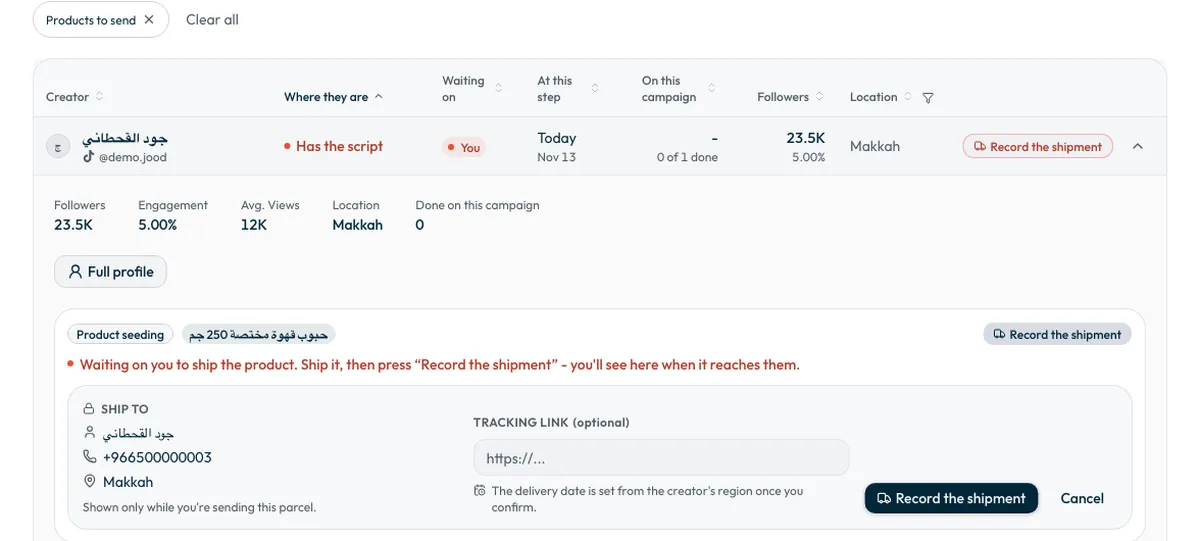
If you see “Not found in the National Address registry”, rely on the city and the details shown, or contact the support team before shipping.
After you record it
- The creator is notified that the product is on its way.
- The campaign page shows the expected delivery date, set from the creator's region.
- The creator moves to “Product on the way”, then to “Filming” once they confirm they received it.
- Shipment details and the received date appear beside the video when you review it.
Common questions
Is the tracking link required?
No. The field is optional, but it helps you follow the parcel.
Why can I no longer see the recipient's details after shipping?
Recipient details are shown only while you prepare the shipment, to protect the creator's privacy.
When does the creator start filming?
Once they confirm they received the product. Follow this in “Campaign cycle”.
Next step
To follow deliveries and remind late creators, see How do I follow creators’ progress and remind late ones? When the video arrives, see How do I approve a creator’s video or ask for changes?
Did this article answer your question?
Thank you. We use your answer to improve the article.
Your answer could not be saved. Try again.
Need more help?
Contact our support team, and we will help you with your question.