Every video a creator submits waits for your decision before it is published. You can review videos in two places: the “Content” page, which gathers the videos of all your campaigns, or the “Content” tab inside a campaign.
Only the “Owner” and “Admin” roles can approve a video or ask for changes.
Why does your review matter?
Approval means the creator publishes the video exactly as it is, so compare it with the brief before approving. If it needs a change, a clear note saves a round of reshooting and gets you to the version you want sooner.
Where do I review videos?
The decision is the same in both places. What differs is the view:
- The “Content” page: the videos of all your campaigns in one place. Use it when you run more than one campaign, or want to approve several videos at once.
- The “Content” tab inside a campaign: the video beside the brief. Use it when you want to check the video against what you asked for, point by point.
Review all your campaigns' videos from the “Content” page
In the sidebar, open “Campaign work”, then “Content”. When videos are waiting for your decision, a “Needs you” card with their number appears in the same sidebar.
- The page shows how many videos are in each state: “Needs your review”, “Revision requested”, “Awaiting upload” and “Approved”. Press “Needs your review”, or “Review now” in the bar at the top, to see only what is waiting for you.
- Press the video to watch it in full.
- To approve it, press “Approve”, then confirm in the window that opens.
- To ask for a change, press the pencil button “Request Revision” next to “Approve”. Write your note under “What needs to change?”, then press “Request Revision”.
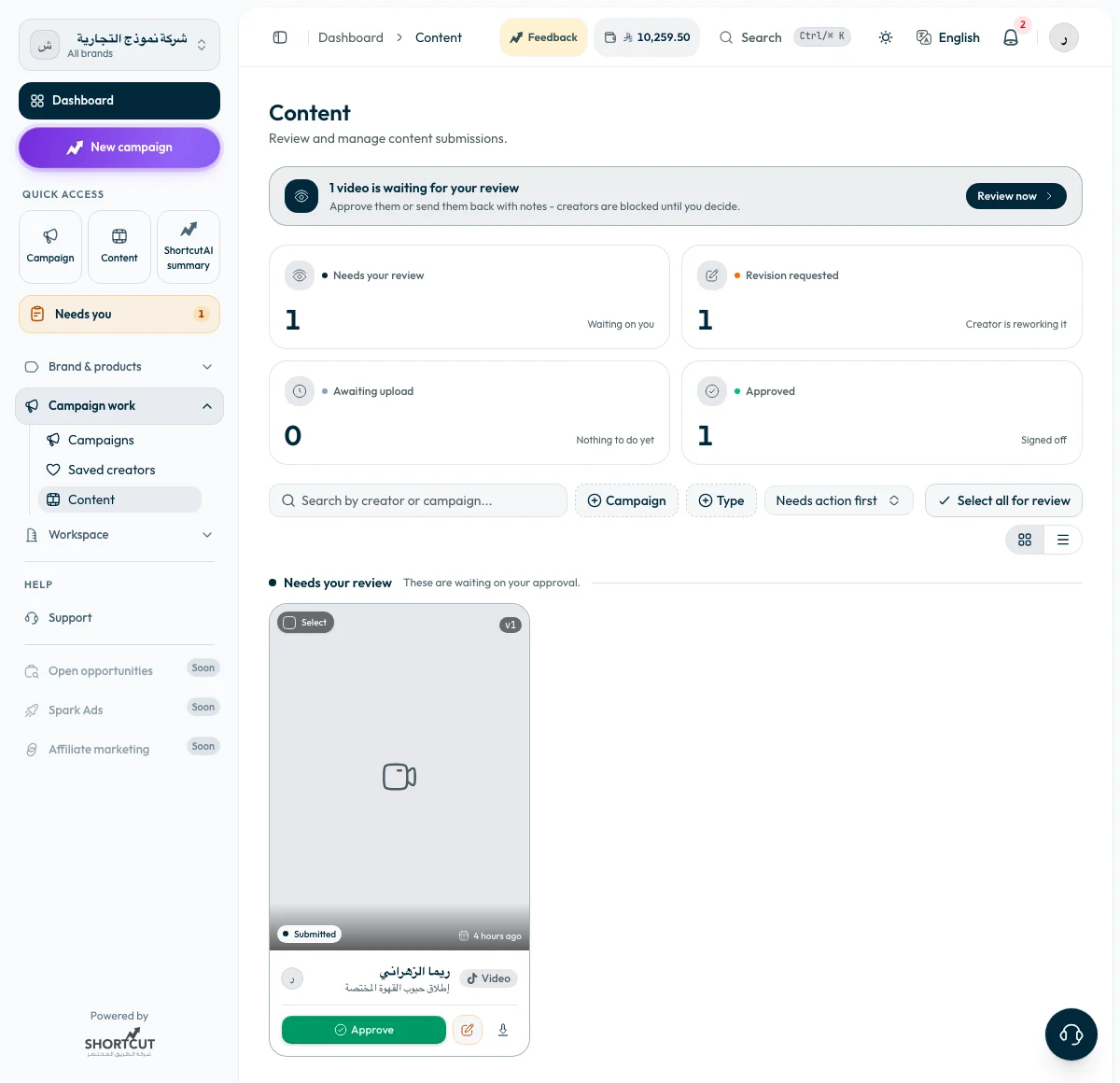
To approve several videos at once, press “Select all for review”, then “Approve” in the selection bar. The same bar downloads the selected videos in one go.
To find one video, search by the creator's or the campaign's name, or use the “Campaign” filter.
An approval from the “Content” page is sent as soon as you confirm it, and no “Undo” button follows. Watch the whole video before you confirm.
Approve a video from inside the campaign
Open the campaign, then the “Content” tab. Videos waiting for you are under “Waiting on you”.
- Press “Watch it beside the brief” and compare the video with the brief and the do's and don'ts.
- Press “Approve”. A confirmation with an “Undo” button shows for a few seconds, then the approval is sent.
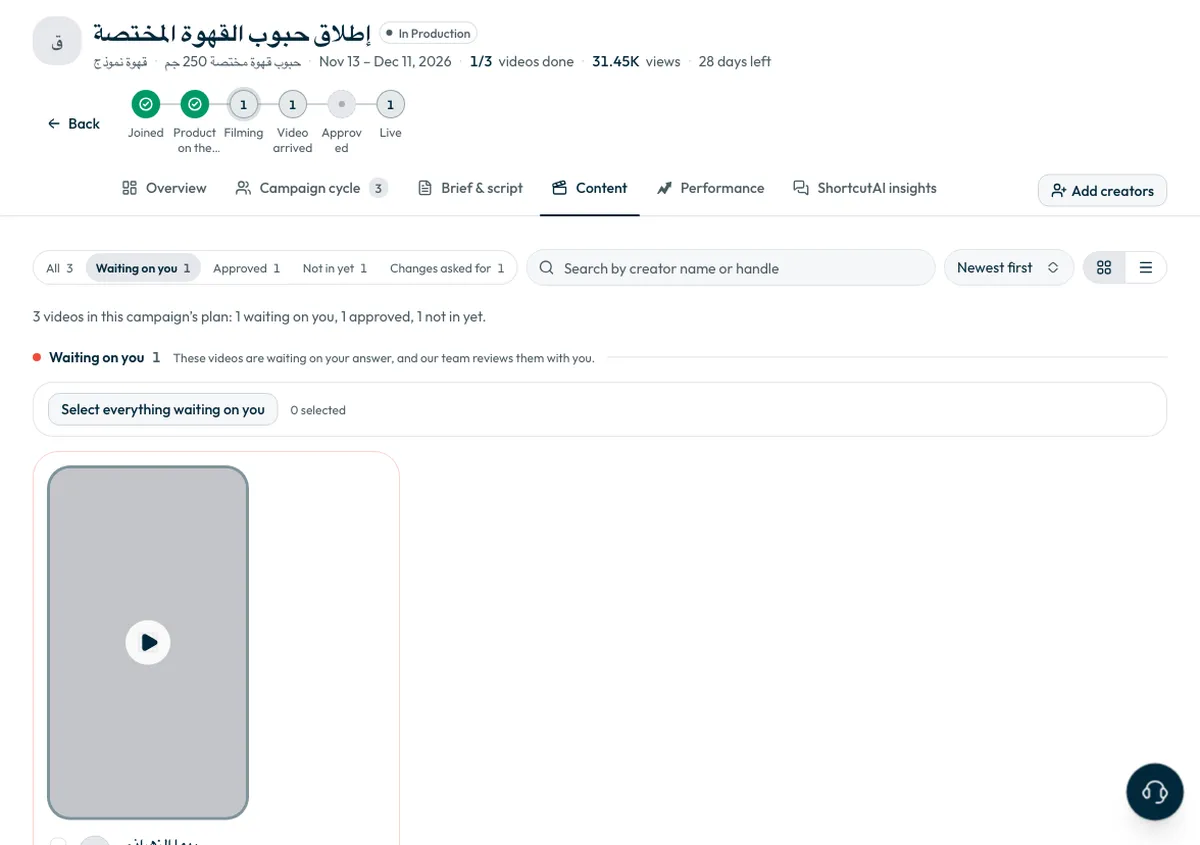
To approve several videos at once, press “Select everything waiting on you”, then approve them.
Ask for a change from inside the campaign
- Press “Watch it beside the brief”, then “Request a change”.
Under “What needs to change?”, write a specific note the creator can act on, such as “Show the pack label clearly in the first three seconds”.
- Press “Request a change” to send it.
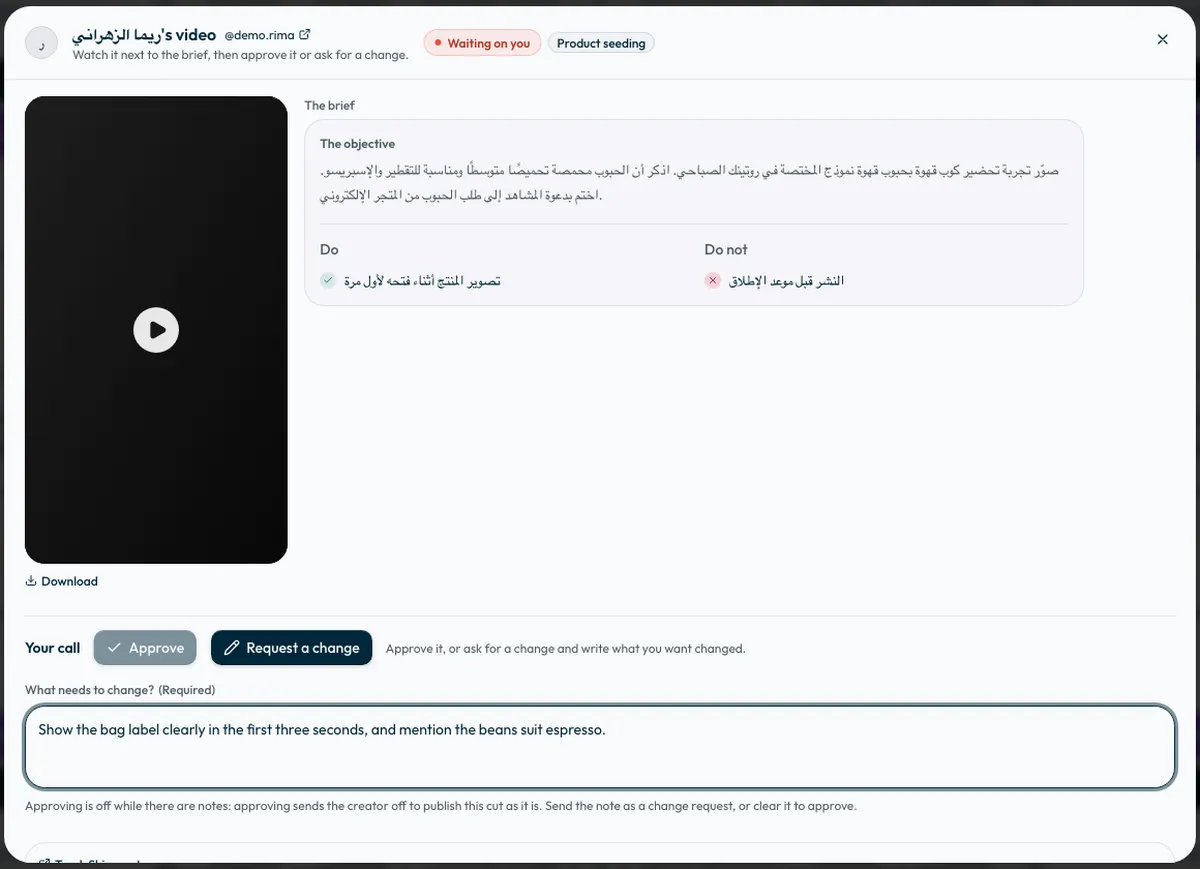
A change request cannot be sent without a note, because sending a video back with no reason makes the creator reshoot without knowing what is wanted. The creator reads your note as you write it.
“Approve” is disabled while the note field has text, because approving means the video is published as it is. Send the note as a change request, or clear it to approve.
How do I write a good change note?
- Say exactly what to change, and where in the video if you can.
- Tie the note to the brief, such as a required item that does not appear.
- Put all your notes in one request, so the creator does not reshoot more than once.
After your decision
- After a change request, your note reaches the creator with a link to upload a new version, and their step becomes “Reworking your changes”. When the new version arrives, it appears under “Waiting on you” inside the campaign and under “Needs your review” on the “Content” page.
- After approval, the creator publishes the video on their account if the campaign includes posting. For “UGC video” campaigns, the job ends at approval.
- To download the video file, press “Download” in the review window inside the campaign, or the “Download” button on the video's card on the “Content” page.
- Once the video is live, its figures appear in the same review window under “How it did”, starting within a day of publishing.
Common questions
Can I undo an approval?
Inside the campaign, an “Undo” button shows for a few seconds after you press “Approve”, then the approval goes to the creator. On the “Content” page, the approval is sent as soon as you confirm it.
What is the difference between the “Content” page and the “Content” tab inside a campaign?
The “Content” page shows the videos of all your campaigns, and suits quick approvals and several videos at once. The “Content” tab inside a campaign shows that campaign's videos only, each beside the brief. A decision made in one shows in the other.
Who on my team can approve videos?
Only the “Owner” and “Admin” roles. To manage roles, see How do I invite team members and set their permissions?
Next step
Once videos are live, see How do I read my campaign results and find the best videos? and Where do I find post links and ad codes?
Did this article answer your question?
Thank you. We use your answer to improve the article.
Your answer could not be saved. Try again.
Need more help?
Contact our support team, and we will help you with your question.