The account owner invites colleagues from the “Team” page and sets each one's role: “Admin” or “Member”. Everyone works on the company's campaigns from the same account, each with their own email and password.
Why does the role matter?
The role decides who spends from the advertising balance and who approves videos. Approving a video is a final decision on a creator's work, and booking creators takes money from the balance. That is why both are limited to “Owner” and “Admin”.
Choose “Member” for someone who only needs to follow campaigns and results, such as a marketing colleague or a manager checking performance.
Invite a member
- In the sidebar, open “Workspace”, then “Team”.
- Press “Invite member”.
Enter your colleague's email and choose the “Role”: “Admin” or “Member”.
- Press “Send invitation”.
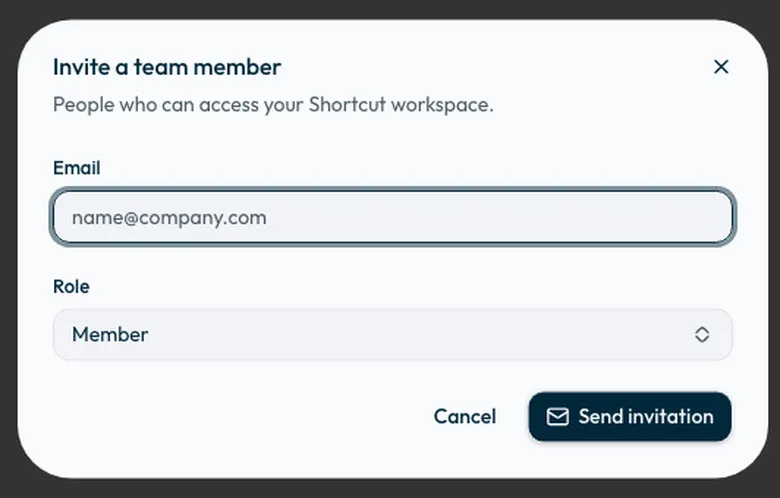
The invitation is emailed to your colleague and expires after 7 days. It stays under “Pending invitations” until they accept, and from there you can “Resend” or “Revoke” it.
What does your colleague do next?
They open the link in the email, enter their name, set a password, and press “Accept & join”. The invitation creates a new account with that email inside your company.
The password needs at least 12 characters, with upper and lower case letters, numbers and symbols.
What each role can do
| Action | Owner | Admin | Member |
|---|---|---|---|
| View campaigns, content and balance | Yes | Yes | Yes |
| Create and edit campaigns | Yes | Yes | No |
| Book creators, pay and top up | Yes | Yes | No |
| Approve videos and request changes | Yes | Yes | No |
| Send reminders to late creators from ShortcutAI | Yes | Yes | No |
| Manage brands and appearance | Yes | Yes | No |
| View the Team page | Yes | Yes | No |
| Invite, change roles and remove members | Yes | No | No |
| Edit company details | Yes | No | No |
Change a role or remove a member
From the “Team” page, the owner can change any member's role, including making another member an “Owner”. To remove someone, the owner opens the actions menu beside their name and chooses “Remove”; they lose access immediately.
The account must always keep at least one owner, so the last owner's role cannot be changed and they cannot be removed.
Common questions
Why does it say the email already has a Shortcut account?
An account can belong to one company only. If the email is already registered, invite your colleague with a different work email.
The invitation expired. What now?
Send a new invitation from the “Team” page. An invitation lasts 7 days from when it is sent.
Can an Admin invite new members?
No. Admins can see the “Team” page, but inviting, changing roles and removing members is for the owner only.
See also: approving a video or requesting changes, and topping up your advertising balance.
Did this article answer your question?
Thank you. We use your answer to improve the article.
Your answer could not be saved. Try again.
Need more help?
Contact our support team, and we will help you with your question.