In the “Creators” step you choose who takes part in your campaign. The page shows Shortcut-approved creators who have an account on your campaign's platform and a set price for the job. You can also ask ShortcutAI, the platform's AI assistant, for recommendations based on your brief.
No creator receives an invitation until you pay.
Why choose creators yourself?
In influencer marketing and in UGC, the right creator matters more than a big follower count. An account that posts in your product's category, with an audience that engages, makes a video closer to your customers. That is why the page shows each creator's subjects, engagement and price, so you can compare before you decide.
Ask for ShortcutAI's recommendations
- Press “See who we'd pick”. ShortcutAI reads your brief, which usually takes under a minute.
- A list titled “We picked … creators from what you told us” appears, closest to your brief first. Each card shows a sentence about the creator's content, and their main category with its share of their content.
- To take the recommendations as they are, press “Choose this cast & assign jobs”. Nothing is charged yet.
ShortcutAI keeps its recommendations within the account sizes you chose in the Scope step. If your brief cannot be read, the recommendations are based on reach and engagement, and the page tells you so.
Search and filter yourself
- Type a creator's name in the search bar, or describe what you want, such as “calm coffee reviews in Riyadh”. To turn your description into filters, press “Fill in filters”, and it ticks the region, category and licence you mentioned.
Press “Filters” to narrow results by “Audience size”, “Price”, “Specialised categories”, “Region”, “City”, “Campaigns done before” and “Gender and license”. Change the order under “Sort by”, such as “Best match for your brief” or “Best match”.
Press “Analytics” on a creator's card to open their profile. It shows prices by job, followers, engagement, a content analysis and the audience. See How do I read a creator's profile and audience before booking?
- Press “Add” on each creator you want, either on the card or inside their profile. The button changes to “Added”.
- Press “Continue to jobs”.
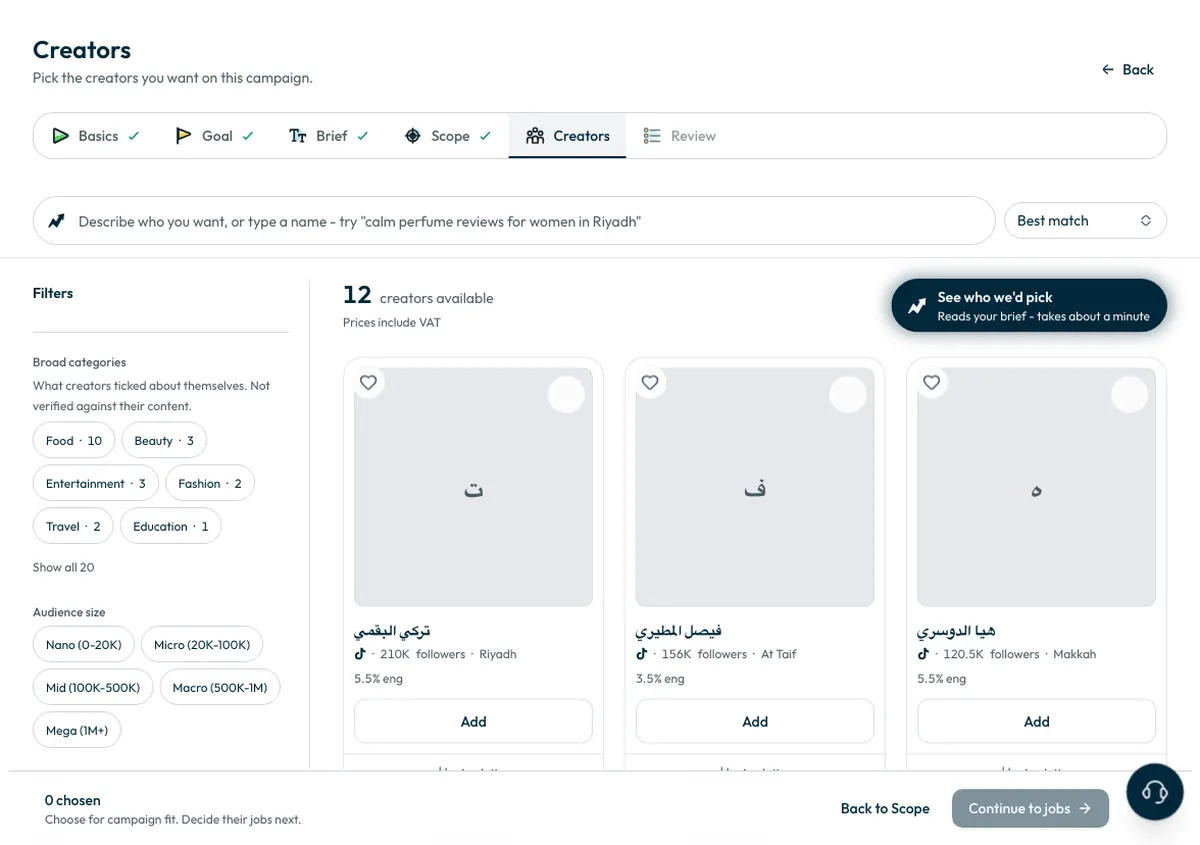
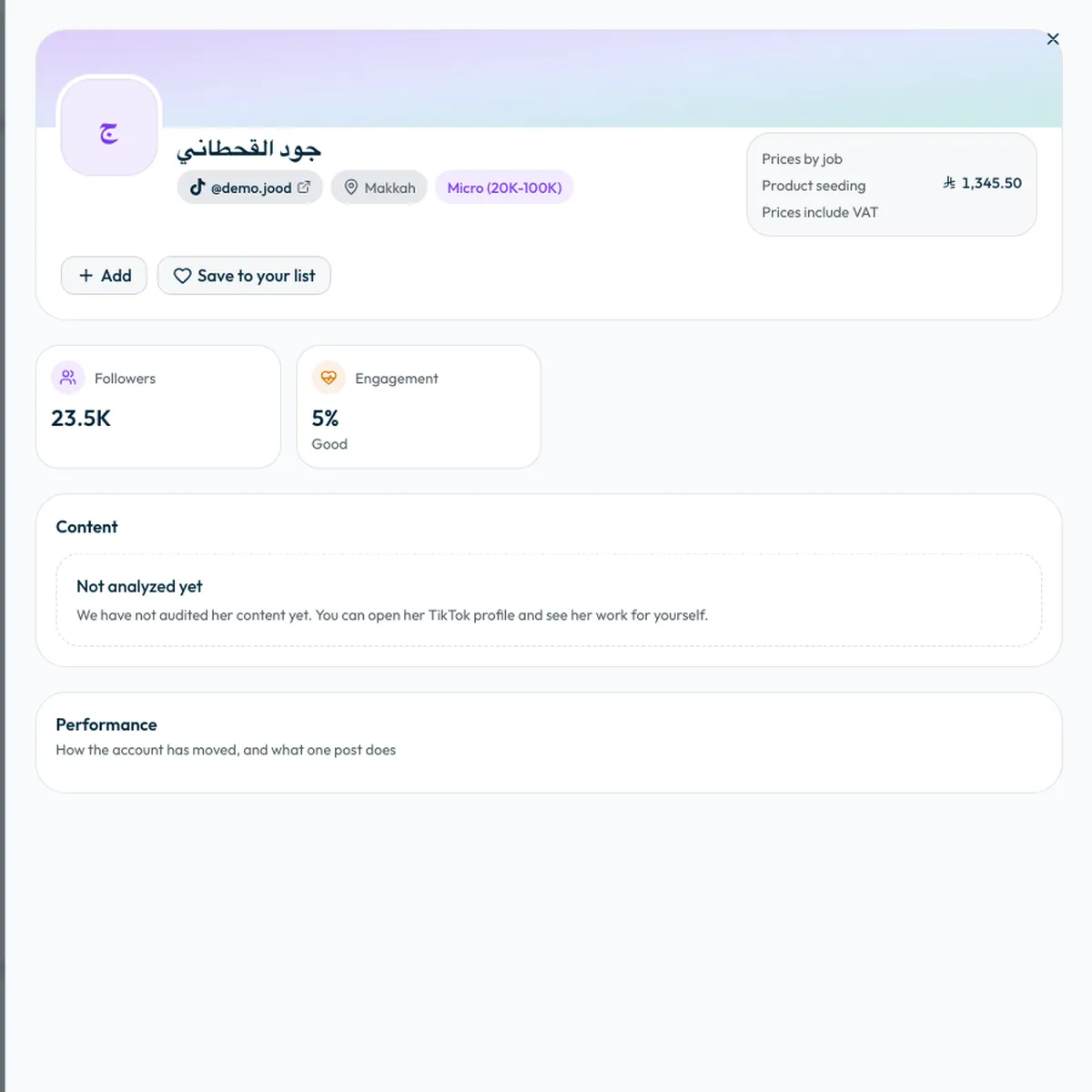
Prices shown include VAT.
How do I read a creator's card?
- Subjects from your brief: the card shows the subjects in your brief that the creator covers, each with a percentage. They show what links the creator to your brief.
- “Specialist in your category”: appears when the creator's content concentrates on the category you asked for.
- “fit” with a percentage: that share of their content sits in the categories you picked in the filters.
- Quick look: on a computer, hover over a creator's name to see their price for each job, “Cost per 1,000 views” and posting rate before you open the profile.
Filters worth knowing
- “Specialised categories”: categories induced from analysing what the creator actually posts. “Broad categories” are what creators ticked about themselves, not verified against their content.
- “Compared to creators their size”: keeps only the strongest on engagement, views or posting consistency among accounts of the same size, so a big account cannot win on volume alone.
- “Licensed only”: limits results to creators who hold a Mawthooq advertising license. See What is the Mawthooq licence, and why does it matter to you?
- “Saved only”: shows the creators you or your team have saved.
Save a creator for a later campaign
Press the heart on the card, or “Save to your list” in their profile. You will find saved creators under “Saved creators”.
Common questions
Why can't I find a particular creator?
The page only shows creators with an account on your campaign's platform and a settled price for the job. Your filters or the account sizes you chose may also hide them, so try “Clear filters”.
Do I have to pick from the recommendations?
No. Recommendations are a suggestion and the whole roster is open to you. You can take the recommendations, pick creators yourself, or mix both.
When does a creator learn I chose them?
Only after you pay. Invitations go out the moment you book and pay.
Next step
Did this article answer your question?
Thank you. We use your answer to improve the article.
Your answer could not be saved. Try again.
Need more help?
Contact our support team, and we will help you with your question.