You book creators and pay in one step. The amount comes from your advertising balance, the campaign starts, and invitations go to the creators straight away.
There is no quotation to wait for and no separate approval. You see each creator's price and the VAT-inclusive total, and nothing is charged until you confirm the payment.
Before you start
- You need the “Owner” or “Admin” role. If you are a “Member”, someone on your team with billing access makes the payment.
- If your advertising balance covers the total, it is paid from the balance. If it does not, you pay the difference by card in the same booking window. See How do I top up my advertising balance?
Assign jobs
The job sets the price, because each creator prices each job separately. That is why you settle the jobs before you pay.
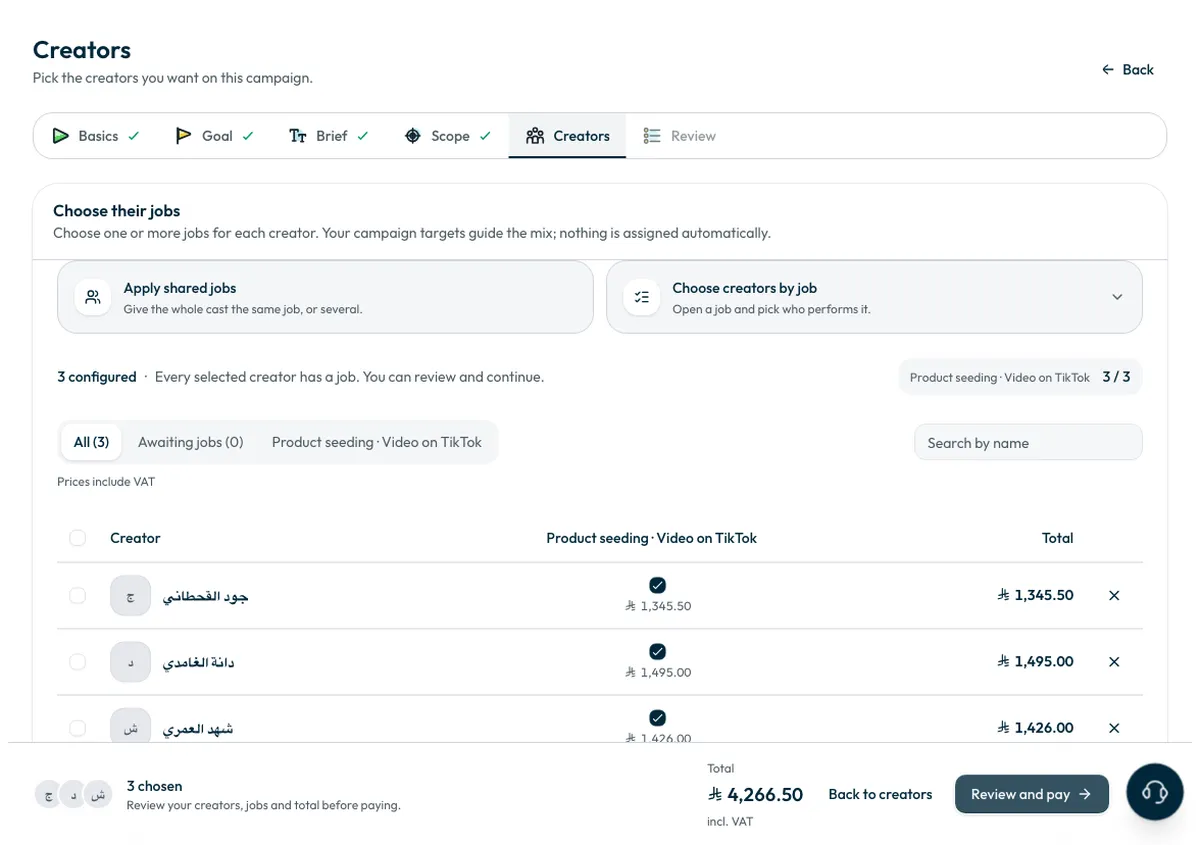
- After “Continue to jobs”, the creators you picked are listed.
- Choose one or more jobs for each creator. Jobs are not assigned automatically. To give everyone the same job, press “Apply shared jobs”.
Check each creator's price and the total at the bottom, then press “Review and pay”. Prices include VAT.
Review and pay
- In the “Review” step, read the campaign summary the way a creator will. To change a section, press “Change” beside it.
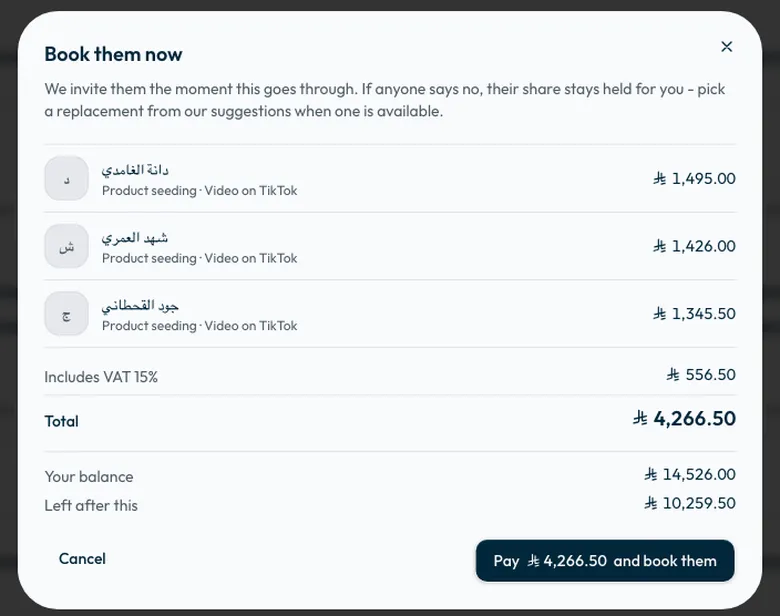
Press “Book and pay”. The “Book them now” window shows each creator's price, the “Subtotal”, the VAT, the “Total”, “Your balance” and what is “Left after this”. If you chose to have creators buy the product, the product money appears on its own line.
- Press the pay button. If your balance covers it, the button reads “Pay … and book them”.
If your balance is not enough
- The button changes to “Pay … by card and book them”, showing the amount the card will be charged.
- Your balance covers part of the amount and your card covers the rest. If the difference is below the minimum payment, the minimum is charged and anything left over stays in your balance.
- Once the card payment clears, Shortcut completes the booking automatically, with no second press.
- If your billing details are incomplete, the window asks for them first, in a “One quick step before you pay” step, because the payment is issued a tax invoice. See How do I add my billing details and commercial registration?
After you pay
- You land on the campaign page, now in the “Recruiting” stage.
- Invitations reach the creators. Each creator has 48 hours to reply, and their answer appears under “Where your invitations stand”: “Said yes”, “Not answered yet” or “Won't take part”.
- Each booking appears under “Transactions” on the “Advertising balance” page, with the campaign name.
- If a creator declines or their invitation runs out, their amount stays held for you to choose a replacement. See What happens if a creator declines or drops out?
- Once creators accept, you choose on the campaign page whether ShortcutAI, the platform's AI assistant, writes a script for each angle, or you send the brief as it is. See How do I send the script or brief to creators?
Pressing the pay button twice does not charge you twice.
Common questions
Do I need Shortcut's approval after paying?
No. Paying books the creators and sends the invitations at once, with no quotation or separate approval.
What happens to a creator's amount if they don't take part?
Their share stays held for you, not spent. You choose a replacement: a dearer one takes the difference from your balance, and a cheaper one puts the difference back. See balance transactions and refunds.
Can I book fewer creators than I planned?
Yes. You can book the ones you picked now and add more creators at any time.
Where do I follow the campaign after paying?
On the campaign page. See How do I track my campaign's progress?
Did this article answer your question?
Thank you. We use your answer to improve the article.
Your answer could not be saved. Try again.
Need more help?
Contact our support team, and we will help you with your question.