You review your advertising-balance activity in the “Transactions” tab on the “Advertising balance” page. It lists every top-up, every creator booking and every amount that came back to your balance.
Money returned on Shortcut goes back to your advertising balance, not to the card you paid with. If you ask for the money held for a creator who will not finish your campaign, it can go to your bank account instead, by a manual transfer from the finance team.
Why review your transactions?
Transactions match what you paid against what each campaign spent, and show what is ready for your next campaign. Your accounts team can use them alongside your tax invoices.
Review transactions
- In the sidebar, open “Workspace”, then “Advertising balance”.
Choose the “Transactions” tab. The top shows the “Opening balance”, “Added”, “Spent” and “Closing balance”.
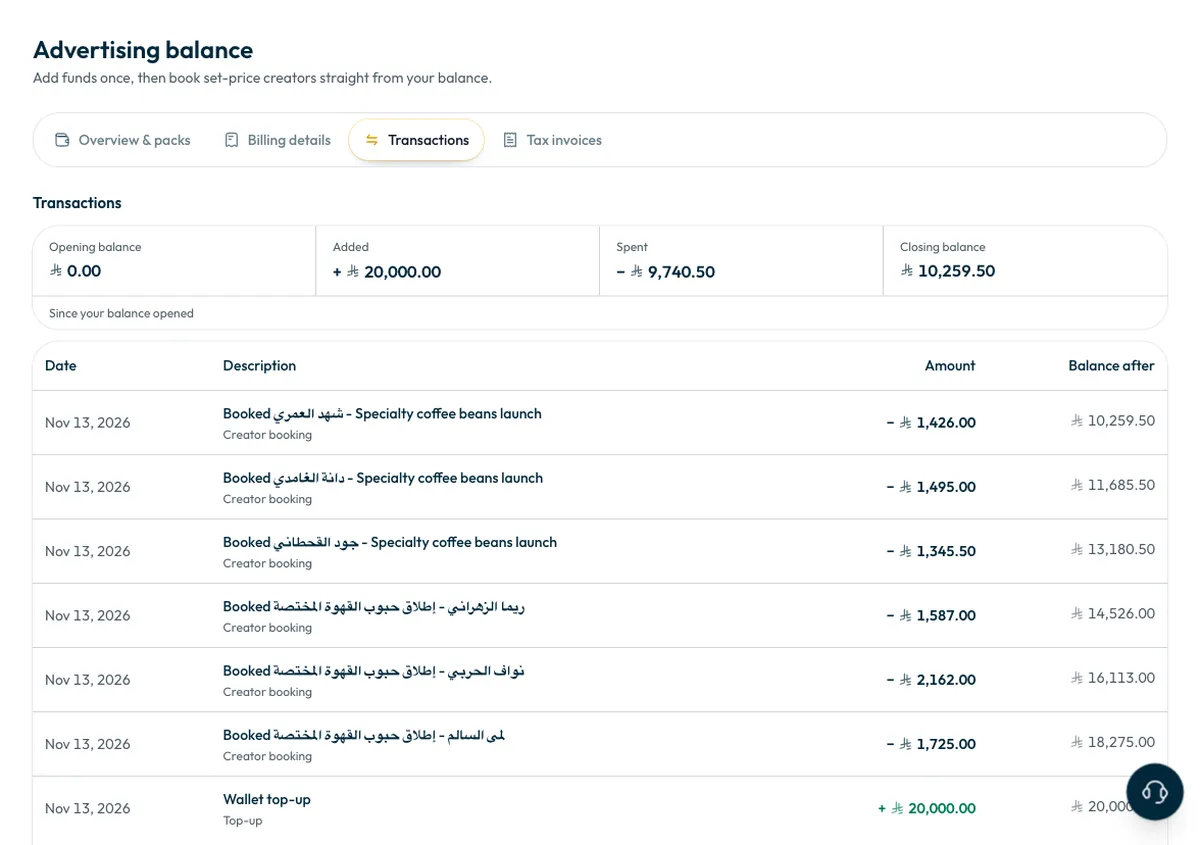
The list shows each entry with its date, details, amount and the balance after it, newest first. The main ones are:
- “Wallet top-up”: money you added.
- “Creator booked - [campaign name]”: money held for a creator when you paid.
- “Booking returned - [campaign name]”: held money that came back to your balance.
- “Refund”: money that left your balance for your bank account.
When does money return to the balance?
- When you cancel an invitation before the creator replies, their amount returns to your balance straight away.
- When you choose a cheaper replacement, the difference returns to your balance. A dearer replacement takes the difference from it.
- When a creator declines, lets the invitation run out, or leaves after joining, their amount stays held for you until you choose a replacement. If you would rather have it back than choose a replacement, ask the support team.
Details: what happens if a creator declines or drops out.
How do I get back money held for a creator who will not finish?
- Open the campaign. On the card for the creator who will not finish, press “Contact our team”. The support request page opens with the campaign already named.
- In “Description”, write the creator's name and say where you want the money: your advertising balance or your bank account.
- Press “Send request”.
The finance team reviews the request. While it is open, no replacement is offered for that place. Once approved, the amount returns to your advertising balance.
If you chose your bank account, the finance team transfers the money by hand. “Transactions” then shows two entries, “Booking returned” and then “Refund”, so the amount does not stay in your balance.
For any other question about your balance, send a request from the “Support” page. See How do I contact support?
Common questions
Does the money go back to the card I paid with?
No. Money goes back to your advertising balance, or to your bank account by a manual transfer from the finance team. Nothing is sent back to a card through the payment gateway.
Does returned balance expire?
No. Your advertising balance never expires, and you can book from it on any campaign for any brand in your account.
Why can't I see “Advertising balance” in the sidebar?
The link shows for the “Owner” and “Admin” roles. Ask one of them to review transactions or top up. See How do I invite team members, and what can each role do?
See also: How do I top up my advertising balance?
Did this article answer your question?
Thank you. We use your answer to improve the article.
Your answer could not be saved. Try again.
Need more help?
Contact our support team, and we will help you with your question.