Before you book a creator, open their profile by pressing “Analytics” on their card. The profile shows their price for each job, their account numbers, an analysis of their content, their audience, their performance over time, and the brands they have named in their posts.
Reading it takes a minute and answers three questions: does this creator reach your audience? Do they post in your product's category? Is their price right for what they offer?
How do I open a creator's profile?
- In the “Creators” step, press “Analytics” on the creator's card.
The “Creator profile” panel opens, with the account, the content and the audience as Shortcut measured them.
- To add the creator to your campaign from inside the profile, press “Add”. To keep them for a later campaign, press “Save to your list”.
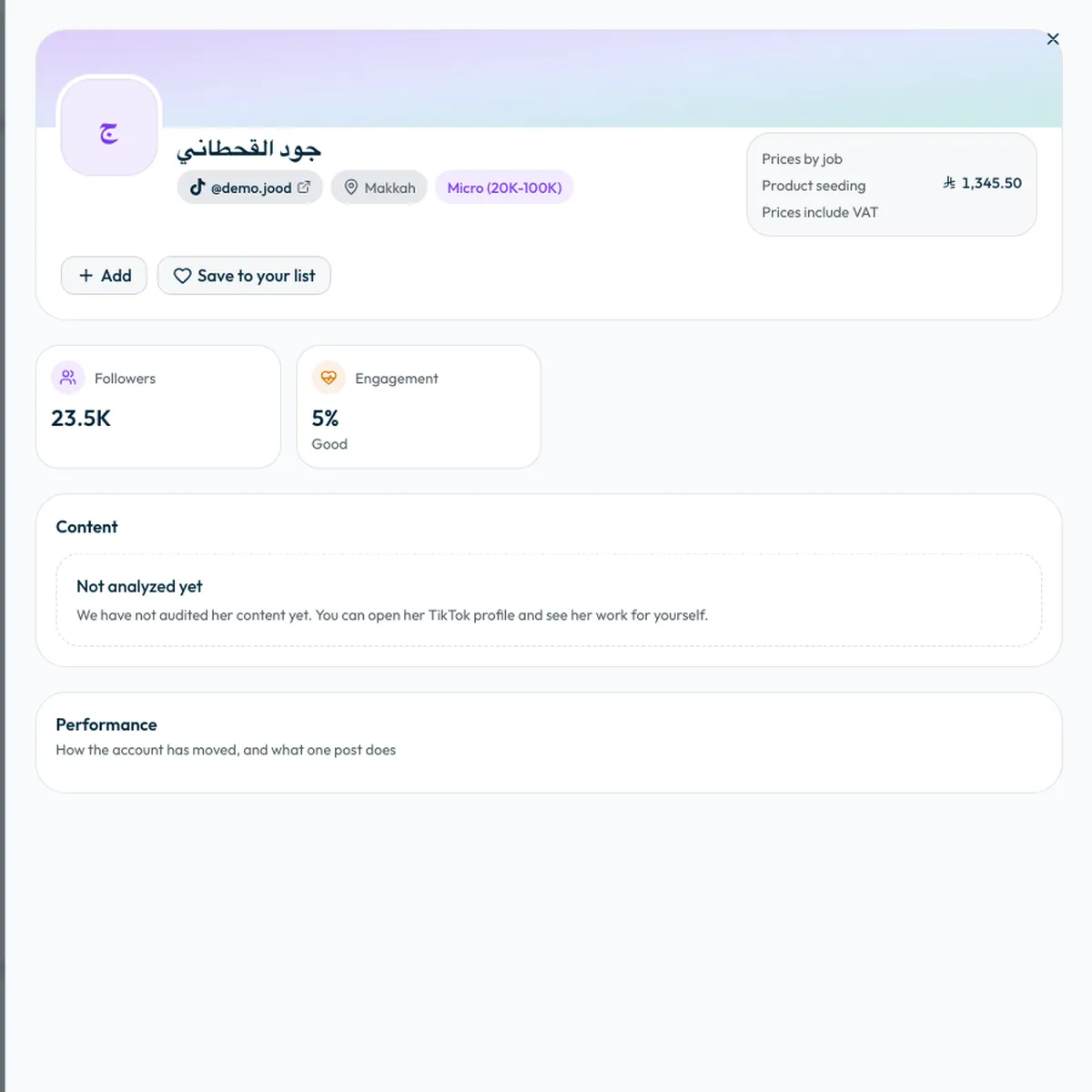
The top of the profile: who they are and what they cost
- The account: the creator's name, a link to their account on the platform, their city or region, and their account size. Open the account link to watch their past work on the platform itself.
- “Prices by job”: the creator's price for each job in your campaign, such as product seeding or a store visit. Prices include VAT. See How are creator prices and campaign costs worked out?
- “Why this creator fits your campaign”: the subjects in your brief the creator covers, and the share of their content in your brief's category.
Account numbers: how do I read them?
| Number | What it means |
|---|---|
| “Followers” | The account's follower count, with how much it has changed. |
| “Average views” | Average views per post, “Excluding tagged ads”. This is the usual reach of an ordinary post. |
| “Engagement” | Likes, comments and shares relative to views. Below it is a rating such as “Good”, “Strong” or “Top”, judged against accounts of the same size. |
| “Posting rate” | How many posts they publish a week. A creator who posts regularly stays more present with their audience. |
Compare a creator with others their size, not with bigger accounts. An engagement rate that is merely fair for a small account can be strong for a large one.
Content: do they post in your category?
- A short summary of what the creator posts.
- “Where their content sits”: the share of their content in each category. Look for your product's category and its share.
- The “Subjects” they post about, their “Dialect” and their “Tone”.
- “Ads and promotion”: the share of their content that is advertising, including promotion without an ad tag. A high share means their audience already sees a lot of ads from them.
If you see “Not analyzed yet”, their content has not been analysed so far. Open their account on the platform and watch their work yourself.
The audience and the ShortcutAI estimate
The “Audience” section shows who watches the creator: “Gender split”, “Age range” and “Top countries”. Look at the tag beside the section title to see where the figures come from:
- “ShortcutAI estimate”: an estimate made by ShortcutAI, the platform's AI assistant, not a report from the platform itself. Use it as a guide to the audience's direction, not as an exact figure.
- No tag: the figures come from the platform's own report on the account's followers.
If the split is titled “Engager gender split”, it describes who engages with the content, not everyone who watches it.
Ask yourself: does this audience look like your customers? If your product is for women aged 25 to 34, for example, look for a creator whose audience is mostly that.
Performance over time
The “Performance” section charts how the account has moved. Choose the “Period”: “Daily”, “Weekly” or “Monthly”, then “What to chart”: “Followers”, “Views per post, ads included”, “Engagement” or “Total likes”. “Per post, on average” shows average likes, comments and shares.
An account that is growing or holding its views is usually a better bet than one whose numbers are falling.
Brand collaborations and similar creators
- “Brand collaborations”: brands the creator named in their own posts. Shortcut has not verified a contract with any of them. It helps you judge their experience, and spot work with your competitors.
- “Similar creators”: the creators whose content sits closest to theirs. If you like their style but the price is high, you may find an alternative here and add them directly.
Before you press “Add”
- Check that the audience looks like your customers.
- Check that a clear share of their content is in your product's category.
- Compare the engagement rating with their account size.
- Look at the “Ads and promotion” share.
- Check that the price of the job you need fits your budget.
- Watch two or three of their posts on the platform.
The profile does not show Mawthooq licence status. To limit results to creators who hold a Mawthooq advertising license, turn on “Licensed only” in the filters. See What is the Mawthooq licence, and why does it matter to you?
Common questions
Are “ShortcutAI estimate” figures accurate?
They are an estimate, not a platform report, which is why the tag sits beside them. Use them to see the audience's direction, and compare them with what you see on the creator's account.
Why does “Average views” differ from the “Performance” chart?
“Average views” leaves out tagged ads, while the chart's “Views per post, ads included” counts them.
Why are some sections empty?
The profile only shows what has been measured. If the creator has not linked an account yet, you see “Nothing here yet”. If their content has not been analysed, you see “Not analyzed yet”.
Next step
Once you have chosen your creators, read How do I book creators and pay? or go back to How do I choose the right creators for my campaign?
Did this article answer your question?
Thank you. We use your answer to improve the article.
Your answer could not be saved. Try again.
Need more help?
Contact our support team, and we will help you with your question.