Push notifications tell you about new invitations, every step of your campaigns, and your fees and payouts. Turn them on so you can reply to invitations before their time runs out.
Why do notifications matter?
Each invitation has a reply window, and it closes when the time runs out. A notification is the fastest way to hear that a brand has chosen you.
Notifications also reach you when a script arrives, when a product is shipped, when a change is requested on your video, when it is approved, and when its posting date is set. They reach you when your fee is added to your wallet, when a payout starts and is sent, and when a campaign certificate is issued.
Turn on push notifications
- Open “Account”.
- Under “App”, check whether “Push notifications” is “On” or “Off”.
- If it is “Off”, tap it.
- Allow the permission if asked. If the app opens your phone's settings, turn on notifications for Shortcut there.
Read your notifications
- Open “Account”, then “Notifications”. You can also open them from the bell on “Home”.
Choose “All” or “Unread”.
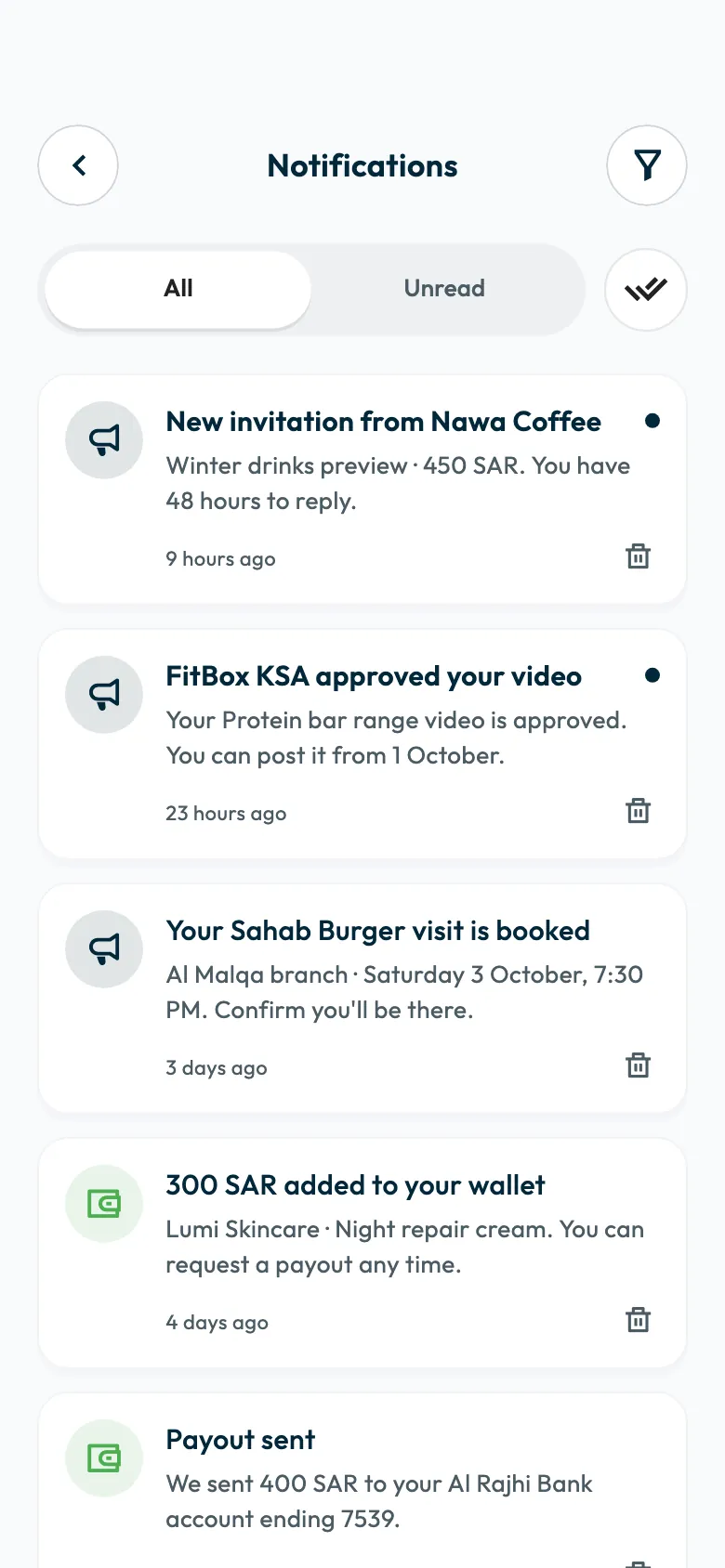
To filter by category, tap the filter button at the top, or choose “All categories”. To delete a notification, tap its delete icon, then “Delete”.
Common questions
If I turn notifications off, do I miss my alerts?
They no longer appear on your phone's screen, but they stay saved in “Notifications” inside the app.
What language do notifications arrive in?
The app language you chose: Arabic or English. If you change the language, the next notifications arrive in the new one. See How do I change the app language or appearance?.
Next step
If an invitation reaches you, read accepting a campaign invitation.
Did this article answer your question?
Thank you. We use your answer to improve the article.
Your answer could not be saved. Try again.
Need more help?
Contact our support team, and we will help you with your question.