The app starts in Arabic the first time you open it, whatever your phone's language, and you can switch to English at any time. The app remembers your choice.
Change the language
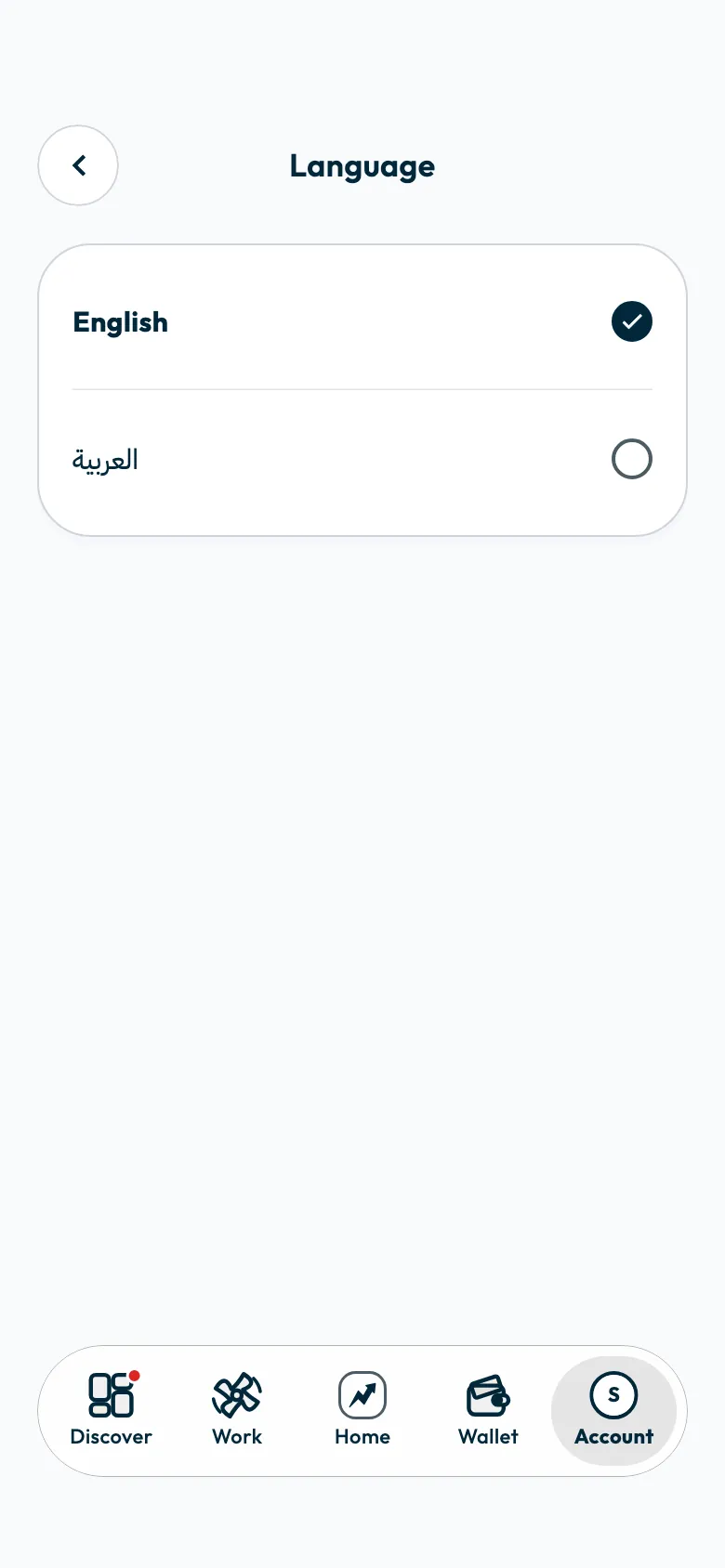
- Open “Account”.
- Under “App”, tap “Language”.
Choose “العربية” or “English”.
To switch with one tap, tap the globe icon at the top of “Home”.
Before you sign in, you can change the language from the language button on the phone number screen.
What does the language change?
The app's text and the screen direction change, and your next push notifications arrive in the new language.
Change the appearance
- Open “Account”.
- Tap “Appearance”.
- Choose “Light” or “Dark”.
To switch with one tap, tap the moon or sun icon at the top of “Home”.
Next step
To get invitations as soon as they arrive, see How do I turn on Shortcut app notifications?. To edit your name, see How do I change my name or phone number on Shortcut?.
Did this article answer your question?
Thank you. We use your answer to improve the article.
Your answer could not be saved. Try again.
Need more help?
Contact our support team, and we will help you with your question.